Fixing the Claude Code npm ENOTEMPTY Error on macOS
The Problem
When using Claude Code, you may occasionally see this message appear:
✗ Auto-update failed · Try claude doctor or npm i -g @anthropic-ai/claude-code
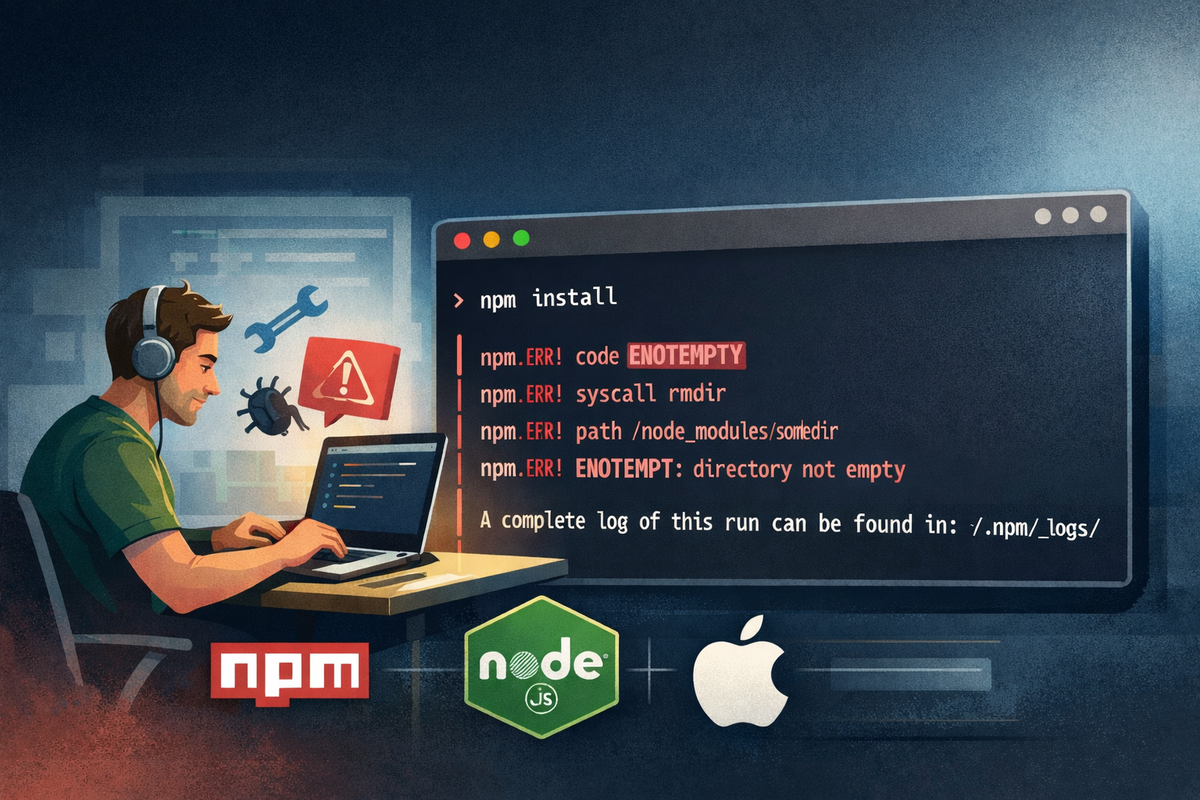
Following the suggested fix by running the npm install command results in the following error:
npm i -g @anthropic-ai/claude-code
npm error code ENOTEMPTY
npm error syscall rename
npm error path /Users/terminator/.nvm/versions/node/v22.20.0/lib/node_modules/@anthropic-ai/claude-code
npm error dest /Users/terminator/.nvm/versions/node/v22.20.0/lib/node_modules/@anthropic-ai/.claude-code-J2E9vu6I
npm error errno -66
npm error ENOTEMPTY: directory not empty, rename '/Users/terminator/.nvm/versions/node/v22.20.0/lib/node_modules/@anthropic-ai/claude-code' -> '/Users/terminator/.nvm/versions/node/v22.20.0/lib/node_modules/@anthropic-ai/.claude-code-J2E9vu6I'
npm error A complete log of this run can be found in: /Users/terminator/.npm/_logs/2026-01-08T09_34_23_077Z-debug-0.log
Understanding the Error
The ENOTEMPTY error occurs when npm attempts to update a package by:
- Renaming the current installation directory to a temporary name (e.g.,
.claude-code-J2E9vu6I) - Installing the new version in the original location
- Removing the temporary directory
This process fails when the parent directory (@anthropic-ai/) is not empty—typically because an orphaned temporary directory from a previous failed update still exists.
Investigation
Before jumping to solutions, let's investigate the root cause.
Step 1: Run Claude Doctor
Claude Code has a built-in diagnostic tool. Run it first to get an overview of your installation:
claude doctor
Example output:
 Diagnostics
 └ Currently running: npm-global (2.0.53)
 └ Path: /Users/terminator/.nvm/versions/node/v22.20.0/bin/node
 └ Invoked: /Users/terminator/.nvm/versions/node/v22.20.0/bin/claude
 └ Config install method: global
 └ Auto-updates: default (true)
 └ Update permissions: Yes
 └ Search: OK (vendor)
This tells us:
- Installation method: npm global install via NVM
- Current version: 2.0.53
- Auto-updates: Enabled (which is why we see the auto-update failed message)
- Update permissions: Yes (so it's not a permissions issue)
If claude doctor shows everything is OK but updates still fail, the issue is likely orphaned temporary directories.
Step 2: Check for Running Claude Processes
Verify if any Claude processes might be holding file handles:
ps aux | grep -i claude
Example output:
terminator  57810  13.7  0.9 1891011664 154768   ??  S    11:08AM  37:30.27 /Applications/Claude.app/Contents/MacOS/Claude
terminator  58744   0.0  0.1 435313776   8416   ??  S<   11:10AM   0:00.04 /Applications/Claude.app/Contents/Frameworks/Squirrel.framework/Resources/ShipIt [...]
terminator  43099   0.0  0.0 435299840   1344 s000  S+   10:43AM   0:00.01 grep [...] -i claude
Note: The processes shown above are for the Claude Desktop app, not Claude Code CLI. These typically don't interfere with the npm installation.
Step 3: Check for File Locks
Verify if any process is actively using files in the Claude Code installation directory:
lsof +D ~/.nvm/versions/node/v22.20.0/lib/node_modules/@anthropic-ai/claude-code 2>/dev/null | head -20
An empty output means no processes are holding file locks—good news!
Step 4: Check for Orphaned Temporary Directories
This is usually where we find the culprit:
ls -la ~/.nvm/versions/node/v22.20.0/lib/node_modules/@anthropic-ai/ | grep claude
Example output revealing the problem:
drwxr-xr-x   9   terminator   staff    288 B     Sun Oct 26 15:16:19 2025    .claude-code-J2E9vu6I/
drwxr-xr-x   9   terminator   staff    288 B     Tue Nov 25 09:45:22 2025    claude-code/
Root cause identified: The hidden .claude-code-J2E9vu6I directory is an orphaned temporary folder from a previous failed update attempt. Its presence prevents npm from creating a new temporary directory during the update process.
Solutions
Solution 1: Nuclear Option (Remove Everything and Reinstall)
This approach removes the entire Claude Code installation and performs a fresh install:
# Remove the existing Claude Code installation
rm -rf ~/.nvm/versions/node/v22.20.0/lib/node_modules/@anthropic-ai/claude-code

# Reinstall Claude Code
npm i -g @anthropic-ai/claude-code

# Verify installation
claude --version
Pros: Simple and always works
Cons: Removes everything, including any cached data
Solution 2: Surgical Fix (Recommended)
This approach removes only the orphaned temporary directory, leaving the current installation intact:
# Remove only the orphaned temporary directory
rm -rf ~/.nvm/versions/node/v22.20.0/lib/node_modules/@anthropic-ai/.claude-code-*

# Now run the update
npm i -g @anthropic-ai/claude-code

# Verify installation
claude --version
Pros: Precise, removes only garbage files
Cons: Requires identifying the temp directory first
Note: The wildcard
.claude-code-*will remove any orphaned temporary directories regardless of their random suffix.
Prevention
Quick Health Check Before Updates
Before running npm i -g @anthropic-ai/claude-code, check for orphaned temp directories:
ls -la ~/.nvm/versions/node/v22.20.0/lib/node_modules/@anthropic-ai/ | grep "^\."
If you see any directories starting with .claude-code-, remove them first:
rm -rf ~/.nvm/versions/node/v22.20.0/lib/node_modules/@anthropic-ai/.claude-code-*
Create a Shell Alias
Add this to your ~/.zshrc or ~/.bashrc for a convenient update command:
alias claude-update='rm -rf ~/.nvm/versions/node/$(node -v)/lib/node_modules/@anthropic-ai/.claude-code-* 2>/dev/null; npm i -g @anthropic-ai/claude-code'
After adding, reload your shell:
source ~/.zshrc # or source ~/.bashrc
Now you can simply run:
claude-update
Additional Troubleshooting
If the above solutions don't work, try these additional steps:
Clear npm Cache
npm cache clean --force
npm i -g @anthropic-ai/claude-code
Force Installation
npm i -g @anthropic-ai/claude-code --force
Kill All Claude Processes
If you suspect Claude Code is still running in the background:
# Check for running processes
ps aux | grep -i claude

# Kill Claude Code processes (not the Desktop app)
pkill -f "claude-code"

# Then retry the installation
npm i -g @anthropic-ai/claude-code
Summary
| Solution | Command | When to Use |
|---|---|---|
| Surgical Fix | rm -rf ~/.nvm/.../\@anthropic-ai/.claude-code-* |
Orphaned temp directories exist |
| Nuclear Option | rm -rf ~/.nvm/.../\@anthropic-ai/claude-code |
Surgical fix doesn't work |
| Cache Clear | npm cache clean --force |
Corruption suspected |
| Force Install | npm i -g @anthropic-ai/claude-code --force |
Last resort |
The key takeaway: the ENOTEMPTY error is almost always caused by orphaned temporary directories from previous failed updates. A quick cleanup of these directories resolves the issue without requiring a complete reinstallation.